
APP SETUP GUIDE · Standard vehicles
Standard vehicles: plug into OBD and go
For vehicles that expose standard OBD-II CAN data. The device draws power and reads data from the OBD port; the phone app connects over Bluetooth.
OBD-II CANZ1 / E1
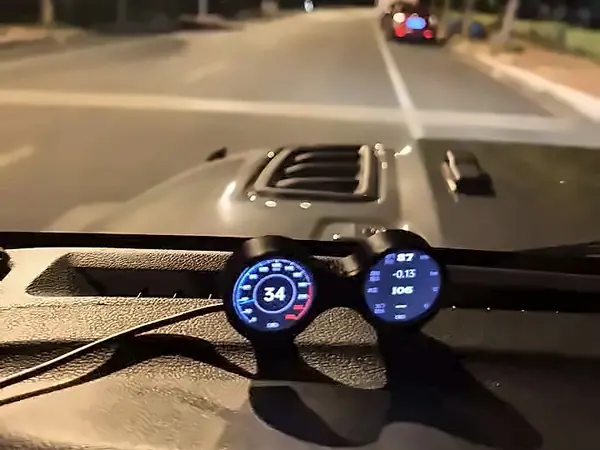
REAL PHOTO
Jeep Wrangler interior · Z1
Z1 setup
- 1Locate the vehicle OBD port (usually under the steering column)
- 2Plug in Z1 and confirm the screens power up
- 3Turn on ACC or ignition
- 4Open the E仪表 app, choose the powertrain type (petrol / EV / hybrid) and connect over Bluetooth
- 5Set the left and right screen content in the app
The standard version reads OBD CAN; K-line, CAN-FD and DoIP are not supported.
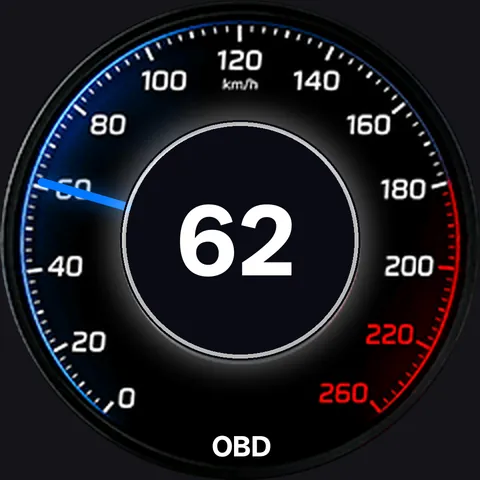
E1 setup
- 1Locate the OBD port and plug in E1
- 2Confirm the bar display powers up
- 3Turn on ACC or ignition
- 4Open the E仪表 app, connect and wait for the automatic CAN scan
- 5Pick five of the 19 J1979 parameters for the five slots
Available data varies by vehicle; parameters that cannot be read show --.
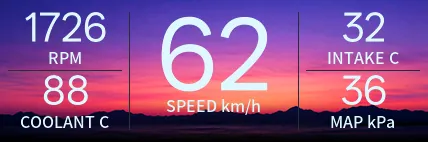
UI illustrative; actual values depend on data exposed by the vehicle.
Notes
- Supports standard OBD-II CAN only; K-line / CAN-FD / DoIP are not supported.
- Available parameters depend on what the vehicle exposes; fault-code reading is not promised.
- Z1 also has a BMW X1 E84 edition (2012–2015 E84 LCI / N20B20 / 8HP45), not covered in this group.
Not sure if your vehicle is supported?
Send us the model, model year and the version you need; we will confirm before you order.
Contact us